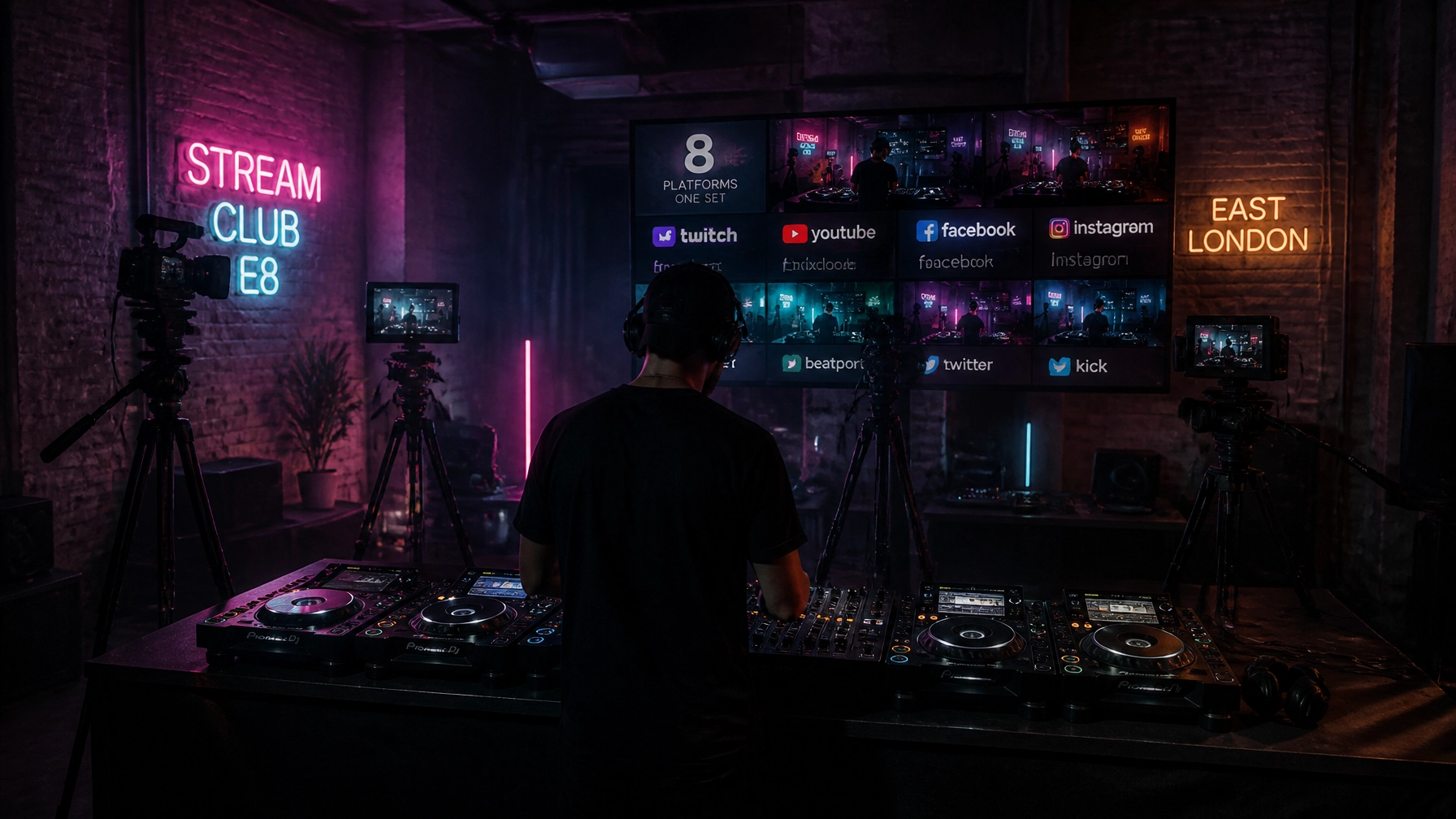
One set. Eight destinations. One clean audio feed.
Multi-platform DJ streaming is no longer a specialist move. DJs now broadcast to YouTube, Twitch, Instagram, Facebook, TikTok and other channels at the same time. The audience is split across platforms. Your signal chain should not be.
The principle is simple:
Decks → mixer → clean master output → OBS → multistream service → up to eight platforms.
The difficult part is keeping the audio tight while you add cameras, lighting, encoding and multiple destinations.
This guide walks through the setup.
If you are looking for DJ studio hire London, @38 has the room for it. The main floor includes a Pioneer CDJ setup, turntables, professional mixer, full PA and monitor system, controlled acoustics and a dark industrial look that reads on camera.
From £600 for a half day. Main floor. Clapton E5. We respond within 24 hours.
Start with the signal chain
Your stream should receive one deliberate audio source.
Not your laptop speakers. Not a room microphone pointed at the PA. Not a mix of the master output and the headphone cue.
The clean route is:
- Pioneer CDJ multi-player decks or turntables.
- Professional DJ mixer.
- Mixer master or record output.
- USB connection or external audio interface.
- OBS.
- Multistream service.
- Your selected platforms.
The chain should be boring. That is a good thing.
Every extra connection creates another place for distortion, hum, latency or double audio to appear.

1. Build the set around club-standard equipment
A broadcast starts with the performance source.
At @38, you can work from a full Pioneer CDJ multi-player setup, turntables and a professional mixer. That means you are not translating your set through unfamiliar entry-level equipment before it reaches the stream.
You can arrive with Rekordbox-prepared USBs, play vinyl, use DVS or build a hybrid setup around the available equipment.
Before the booking:
- Analyse your tracks in Rekordbox.
- Set beatgrids and hot cues in advance.
- Bring two prepared USBs.
- Check your headphones and adapters.
- Decide whether you are playing digital, vinyl or hybrid.
- Prepare your platform titles, descriptions and artwork.
Do not spend the first hour of your stream troubleshooting a USB that was not formatted correctly.
Your audience will not see the problem. They will only see that the set has not started.
2. Take the master output, not the headphone cue
The audio sent to OBS should be the finished mix from the mixer.
That normally means using one of two routes:
USB from the mixer
If your mixer supports USB audio, connect it directly to the streaming computer. Select the mixer as the audio input in OBS.
This is usually the cleanest option. The mixer acts as the audio interface, reducing unnecessary conversions and extra hardware.
Depending on the mixer, you may need to select the correct USB routing option, such as Mix, Master or Record Out.
Check the manual for the exact channel assignment.
Record or master output into an interface
If the mixer does not provide USB audio, connect its record or master output to an external audio interface. Then connect the interface to the streaming computer.
Use a proper line input. Avoid sending a hot booth or speaker output into a mic input. That is an easy way to introduce clipping.
The goal is a stable stereo feed. Left and right. No cue. No system audio. No laptop notifications.
OBS Studio is a useful starting point because it lets you manage audio, cameras, scenes and stream settings in one place.
3. Set your gain before you press go live
A strong signal is not the same as a loud signal.
Keep the channel gains on the mixer in the green, with occasional movement into the amber. Avoid pushing everything into the red.
In OBS, leave headroom. A useful starting point is to have your loudest sections peak around -6 dB rather than hitting 0 dB.
Why?
Because a clipped signal cannot be repaired later. Once the waveform is flattened, the distortion is part of the recording and the stream.
Run a proper test:
- Play the loudest track in your planned set.
- Watch the mixer meters.
- Watch the OBS meters.
- Check the left and right channels.
- Record 60 seconds locally.
- Listen back on headphones and a phone.
The phone test matters. A mix can sound balanced on studio monitors and still lose the vocal, bass or high-end on a small speaker.
4. Keep OBS focused
OBS should receive the sources you actually want.
For a DJ stream, that could be:
- Multi-camera 4K video.
- The mixer’s master audio.
- An optional microphone.
- Branded graphics or overlays.
- A holding scene for the start and end of the broadcast.
Turn off anything you do not need.
That includes:
- Desktop audio.
- Built-in laptop microphones.
- Duplicate audio inputs.
- Unused capture devices.
- Automatic monitoring that creates an echo.
Double audio is one of the most common problems in DJ streams. You hear the clean mixer feed and a second delayed version from another source. The result is phase issues, echo and a stream that feels loose.
Monitor through the mixer and headphones where possible. Do not monitor the stream through OBS unless you have a specific reason and understand the delay.
For more routing reference, the OBS DJ stream forum shows the kind of audio input and monitoring issues streamers regularly troubleshoot.
5. Add cameras without compromising the set
A DJ stream should show more than one locked-off wide shot.
A practical multi-camera setup could include:
- A wide shot of the full booth.
- A close-up of the mixer and hands.
- A side angle showing the decks and performer.
- A detail angle for turntables, needles or track selection.
Multi-cam 4K gives you room to crop, reframe and create vertical clips after the stream. You can use the same session for the live broadcast, YouTube upload, short-form edits and promotional stills.
The room matters here.
A white rehearsal box gives you very little to work with. You end up building the image from scratch with flags, backdrops and extra lighting.
The @38 main floor already gives you texture:
- Dark industrial surfaces.
- Visible structure.
- Controlled low-key lighting.
- Deep shadows.
- Cyan, purple and magenta accents.
- A DJ setup that reads immediately on camera.
The visual system does not need to compete with the performance. It needs to frame it.

6. Send one feed to multiple platforms
Do not build eight completely separate broadcasts unless you have a production reason to do so.
The simpler route is:
OBS sends one feed to a multistream service. The service distributes it to your connected platforms.
Services such as Restream allow you to connect multiple destinations and broadcast from one stream input.
The workflow is usually:
- Create or connect your platform accounts.
- Add the destinations inside the multistream service.
- Copy the service’s RTMP server and stream key.
- Add those details to OBS.
- Confirm your video, audio and title settings.
- Start with a private or unlisted test.
- Go live to the selected platforms.
You can broadcast to up to eight platforms from one production setup, depending on your service and account configuration.
The advantage is control. You manage one scene, one audio feed and one main broadcast output.
The platform-specific work still matters. Check each destination’s requirements for:
- Account permissions.
- Stream keys.
- Resolution.
- Bitrate.
- Vertical or horizontal formatting.
- Music rights.
- Archive and replay settings.
A clean feed does not remove platform rules. Check them before the show.
7. Protect the broadcast with a proper test
Never make your first test public.
Set up an unlisted YouTube stream or another private destination. Run the full chain as if you were live.
Test:
- Audio level.
- Audio sync.
- Camera framing.
- Camera exposure.
- Lighting changes.
- Internet stability.
- Platform connections.
- Stream delay.
- Local recording.
- Backup power and storage.
Let the stream run for at least 10 minutes.
Play a full transition. Speak into the mic if you are using one. Move through your planned camera scenes. Watch the output on a separate phone or laptop.
Listen for:
- Distortion on loud sections.
- Missing low-end.
- Delayed monitoring.
- Cue audio leaking into the master.
- Audio dropping when the camera scenes change.
- A second audio source creating an echo.
Fix the chain before the audience arrives.
Why the room still matters
Software cannot create atmosphere from nothing.
You can broadcast from a bedroom. You can also spend hours trying to hide the bedroom.
A dedicated video production studio London setup gives you more control from the start. The sound system is ready. The decks are recognisable. The lighting gives the cameras depth. The background has texture without a set build.
At @38, the main floor is built for DJs who need the performance and the image to work together.
You get:
- Pioneer CDJ multi-player decks.
- Turntables.
- Professional mixer.
- Full PA and monitor system.
- Controlled acoustics.
- Multi-camera 4K production capability.
- Dark industrial surfaces.
- Full exclusivity during your booking.
- Capacity to scale from a solo set to a filmed session with a crew.

Book the setup
One DJ set can become a live broadcast, a long-form upload, eight platform cuts and a month of short-form content.
But the chain needs to be right.
Start at the mixer. Keep the master clean. Remove duplicate inputs. Test privately. Then send one stable OBS feed to the platforms that matter to your audience.
@38 is in Clapton · Hackney · London E5.
DJ studio hire London from £600 for a half day on the main floor. We respond within 24 hours.
Book the DJ setup or explore @38.
Which platforms do you stream to now : YouTube, Twitch, Instagram, TikTok, Facebook or somewhere else? Comment below and tell us what your current setup looks like. You can also DM @38 to talk through your session.
Leave a Reply